How to Pass Google Business Profile Video Verification
A step-by-step walkthrough for contractors and home service businesses. What to show, what order to show it in, what kills the video, and what to do when Google rejects it.
30 sec
Minimum video length per Google’s official requirements
2 min
Target maximum length for highest approval rate
5 days
Google’s standard review window after upload
10
Distinct proof items a contractor’s video must show
Why This Changed
Why Google Replaced Postcards and Phone Calls with Video
For years, Google verified businesses by mailing a postcard with a five-digit code to the listed address. The business owner entered the code and the profile went live. That system worked until it did not. People figured out how to game it. Fake listings for plumbing companies, HVAC services, and locksmiths spread across Google Maps, claiming service areas they had no presence in, intercepting calls meant for legitimate contractors.
Google’s response was video verification. A continuous, unedited recording that shows your physical location, your business assets, and your ability to access both is significantly harder to fabricate than a code mailed to an address. For service-area businesses like plumbers, HVAC companies, roofers, and landscapers, video is now the standard verification path. Phone calls and email verification are largely gone for home service contractors.
The process looks intimidating on paper. Contractors who go through it once describe it as straightforward once they know the exact sequence. The rejections almost always come from the same set of avoidable mistakes.
Important
Contractors and locksmiths fall into what Google classifies as high-spam business categories. Your verification video gets applied stricter automated review than a general retail business. This does not mean rejection is more likely if you follow the steps correctly, but it does mean minor inconsistencies get flagged that might pass for other business types. Every detail in this guide matters more for contractors than for most other GBP categories.
Part 1 of 4 — Prep Work
Get Your Business Documentation Together First
Google’s video review checks for three things simultaneously: proof your business address exists as a real location, proof your business is a real operating company, and proof you are the person authorized to manage it. You need physical evidence of all three before you press record. To verify Google Business Profile successfully, Google cross checks visual proof, location data, and account ownership signals during the same review session. Missing any one of them is the most common reason videos fail.
Gather these before you open Google:
Business license or state registration document
Must show your company name and the address tied to your GBP. Before filming, fold or cover any tax ID numbers or registration numbers beyond what is needed. Google needs to see the name and the address.
Work vehicle with your company name visible
A decal, magnetic sign, wrap, or painted logo all count. The name on the vehicle must match the name on your Google Business Profile exactly, including capitalization and abbreviations. “Metro Plumbing LLC” on the truck and “Metro Plumbing” on the profile is a mismatch that triggers rejection.
Trade tools and equipment
The tools your trade requires. A plumber shows pipe wrenches, drain snakes, and fittings. An HVAC tech shows gauges and a manifold set. A roofer shows a roofing nailer and material samples. Google’s reviewer needs to identify your trade from the footage alone.
A branded business item
A business card, estimate sheet, invoice pad, or door hanger with your company name printed on it. This is the simplest item to show and one of the most impactful.
Two official documents tying your company to your registered address
A utility bill in the company name, an LLC registration, a state contractor’s license, or a tax document from your state or local authority. You need two separate documents. One is not enough for the service-area contractor category. For a service area business verification video, Google applies stricter checks because no storefront signage is available for public confirmation.
Before You Film
Go through every document and fold or cover any bank account numbers, routing numbers, Social Security numbers, or tax ID numbers. Google’s guidelines prohibit sensitive information from appearing in the video. A rejection for sensitive data means starting over completely.
Part 2 of 4 — Profile Settings
Check Your Profile Before You Record a Single Frame
Your video is reviewed against your profile. If the name on your truck does not match the name on your GBP, the video fails. If the address you walk to does not match the address on your profile, the video fails. Clean the profile first. Accurate profile data also helps your business rank in Google Maps, since inconsistent details weaken trust signals tied to your listing.
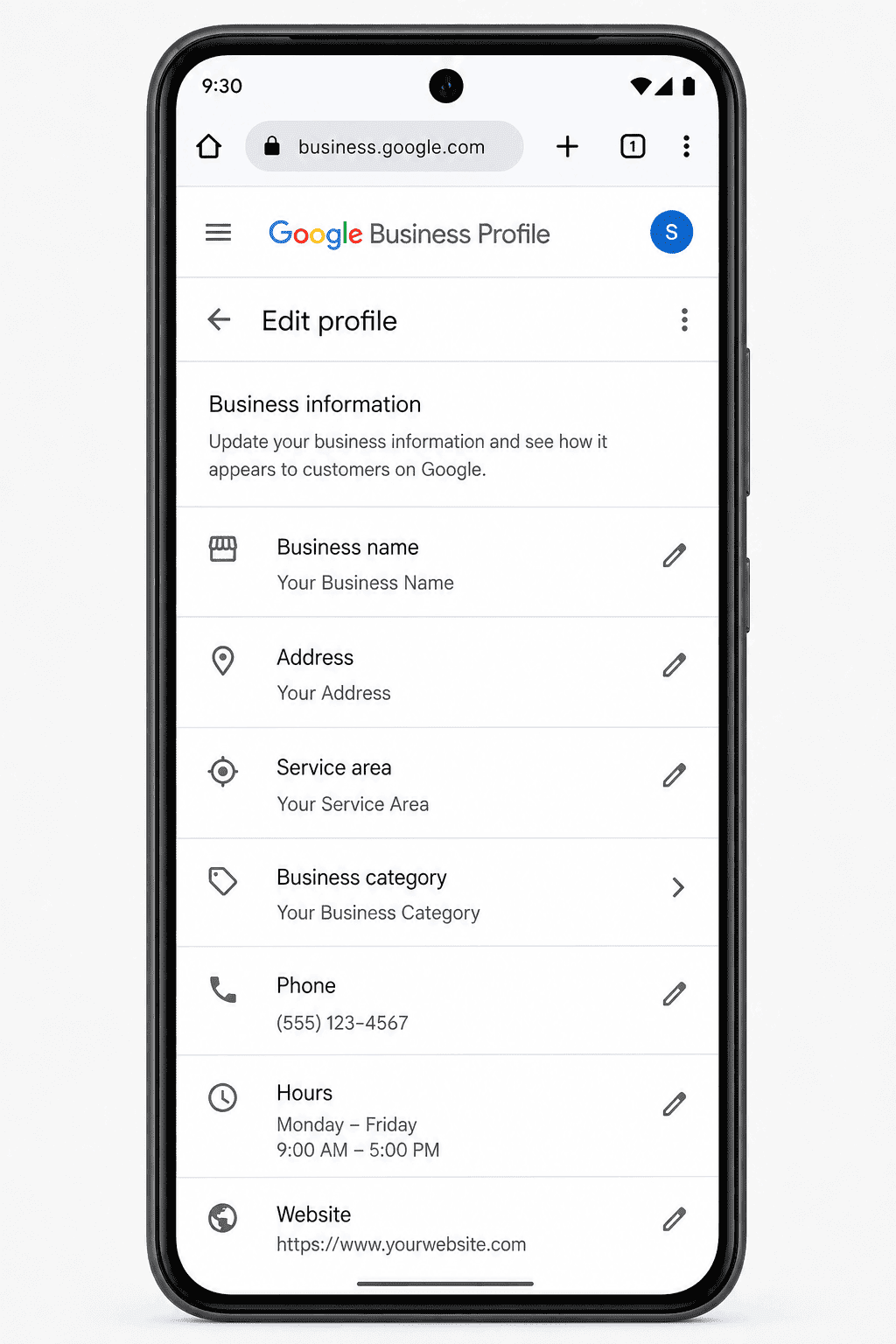
Open your Google Business Profile on your phone or at business.google.com and check these four fields before you film anything:
1
Business name
The profile name must match your business license and your vehicle signage exactly. No added city names, keywords, or descriptors. If your license says “Riverside Roofing,” the profile says “Riverside Roofing.” Nothing added. Google’s guidelines prohibit business names that include keywords not in your real-world name.
2
Address settings
For most home service contractors, the address should not be displayed publicly. List yourself as a service-area business and hide the address. Google’s own guidance states that if customers do not walk in during business hours and get served by a staff member at that location, the address should not be public. Do not use a PO box or virtual office as your registered address. Google flags both.
3
Service area
Set your service area to the cities or counties where you actually work. Google expects service areas for home service businesses to stay within approximately a two-hour drive from the base location. A roofing company in Phoenix listing every county in Arizona will get flagged. Keep it realistic and accurate.
4
Phone and website
Your GBP phone number and website must match what is published on your website. A verified profile can turn website leads to more calls when searchers see the same phone number in both places. Inconsistent NAP (name, address, phone) data across your website, your profile, and your official documents is one of the leading causes of verification failure for service-area businesses.
Multi-Location Verification
Multi-Location Businesses
For a multi-location business, record proof for the exact location tied to the profile you are verifying. For a new contractor business Google verification, showing early proof of tools, branded materials, and active work setup helps establish legitimacy faster. Do not film a different branch, shared office, storage yard, or owner’s home unless that is the address listed for that specific profile. The business name, address, signage, vehicle, and documents must match the profile being verified. If the company manages many locations, Google’s bulk verification guidance says an authorized representative may still need to confirm business existence through a video recording or live video call for a location.
Part 3 of 4 — Before You Press Record
Phone Settings, Practice Run, and a Pre-Recording Checklist
Your verification video is a single, continuous take recorded inside the Google Maps app. You cannot record offline and upload later. You cannot pause, stop, and resume. The moment you press record inside the app, the clock starts and everything you show needs to be within reach.
Lower your phone’s video quality before recording
Most current Android and iPhone models default to 4K video. A 4K recording that runs 90 seconds can exceed 400MB. Google’s upload system has size limits that cause 4K videos to fail at upload, often without a clear error message. Before you record inside the Google Maps app, go to your phone’s native camera settings and lower the quality to HD (1080p) or, if available, 720p. You are not filming a commercial. You are filing a verification record. This verification step directly impacts lead generation because only verified listings appear consistently in local search results.
Also confirm that location services are turned on for your phone and for the Google Maps app specifically. Google uses your phone’s GPS signal during recording to cross-check the video location against the address on your profile. A GPS mismatch or disabled location service is one of the less obvious rejection triggers.
Do a practice run first
Use your phone’s regular camera app (not the Google Maps app) and walk through the entire sequence below. Record it. Watch it back. Time it. Your target for the real recording is between 60 and 90 seconds. Videos under 30 seconds fail Google’s minimum length requirement automatically. Videos over two minutes frequently fail to upload or get rejected for being too long to review reliably.
If your practice run exceeds two minutes, identify which steps are taking too long and cut the time before recording the real thing. Two to three seconds per item is enough. You do not need to linger.
Everything within arm’s reach before you start
Work vehicle
Truck, van, or trailer with branding visible from the side. Parked where you can walk to it without going out of frame.
Keys and access
Keys, fobs, or codes for the building and the vehicle. You need to unlock both on camera.
Trade tools
In the vehicle or accessible nearby. Load them before recording so the walkthrough stays continuous.
Branded item
Business card, estimate sheet, or invoice pad in your pocket or on a nearby surface. Easy to grab without searching.
Two official documents
Sensitive info already covered. Placed face-down near where you plan to show them so they are ready to flip up quickly.
Stable network
Stay on one network for both recording and uploading. Switching from Wi-Fi to mobile data mid-upload is a documented cause of upload failures.
Part 4 of 4 — The Recording
How to Start the Recording and What to Show, Step by Step
Two rules apply for the entire recording:
No talking. The recording must be silent. Do not narrate. Do not explain what you are showing. Just show it.
No faces. Keep the camera away from your face and anyone nearby. Faces showing in the video is a documented rejection reason in Google’s guidelines.
Starting the recording in Google Maps
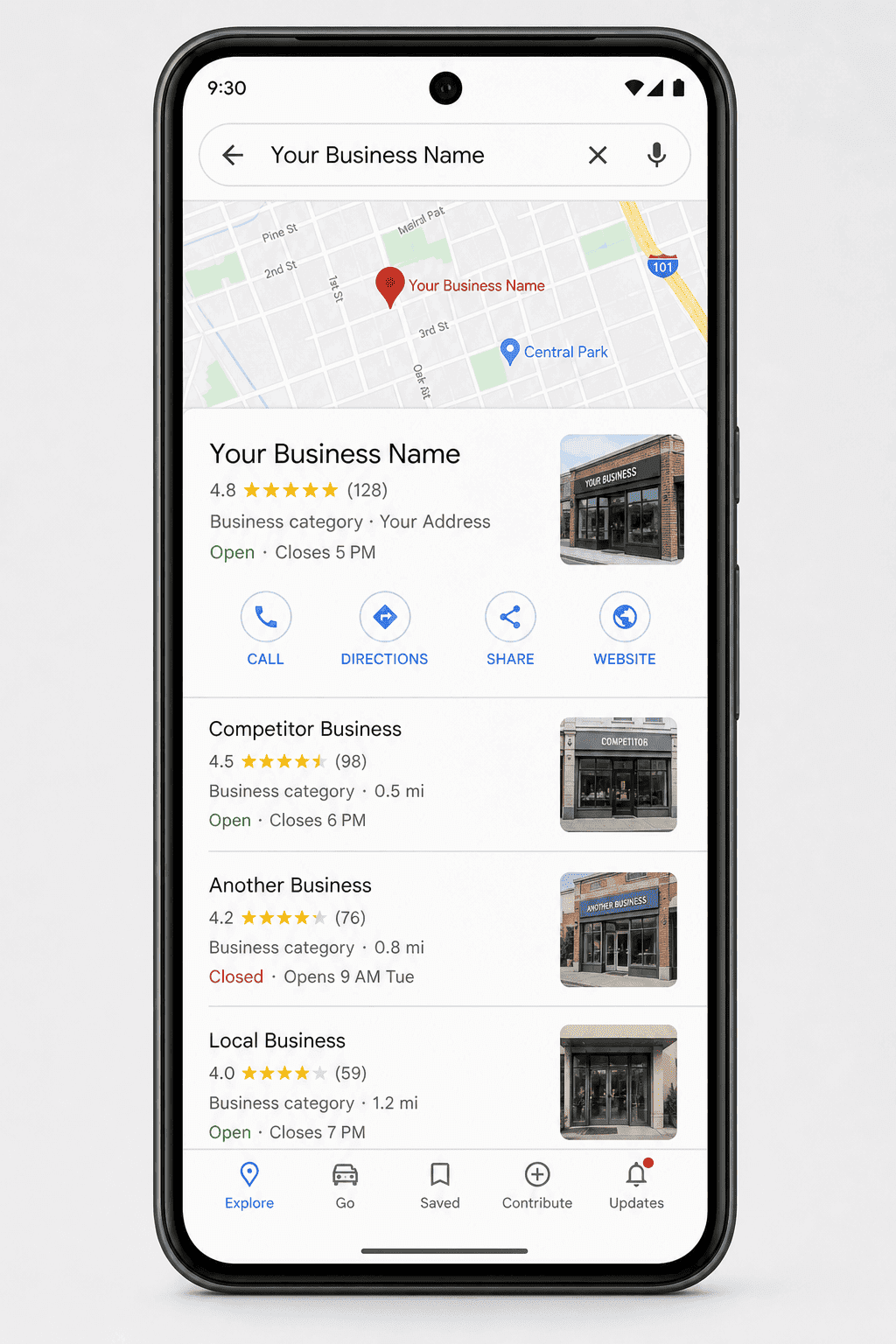
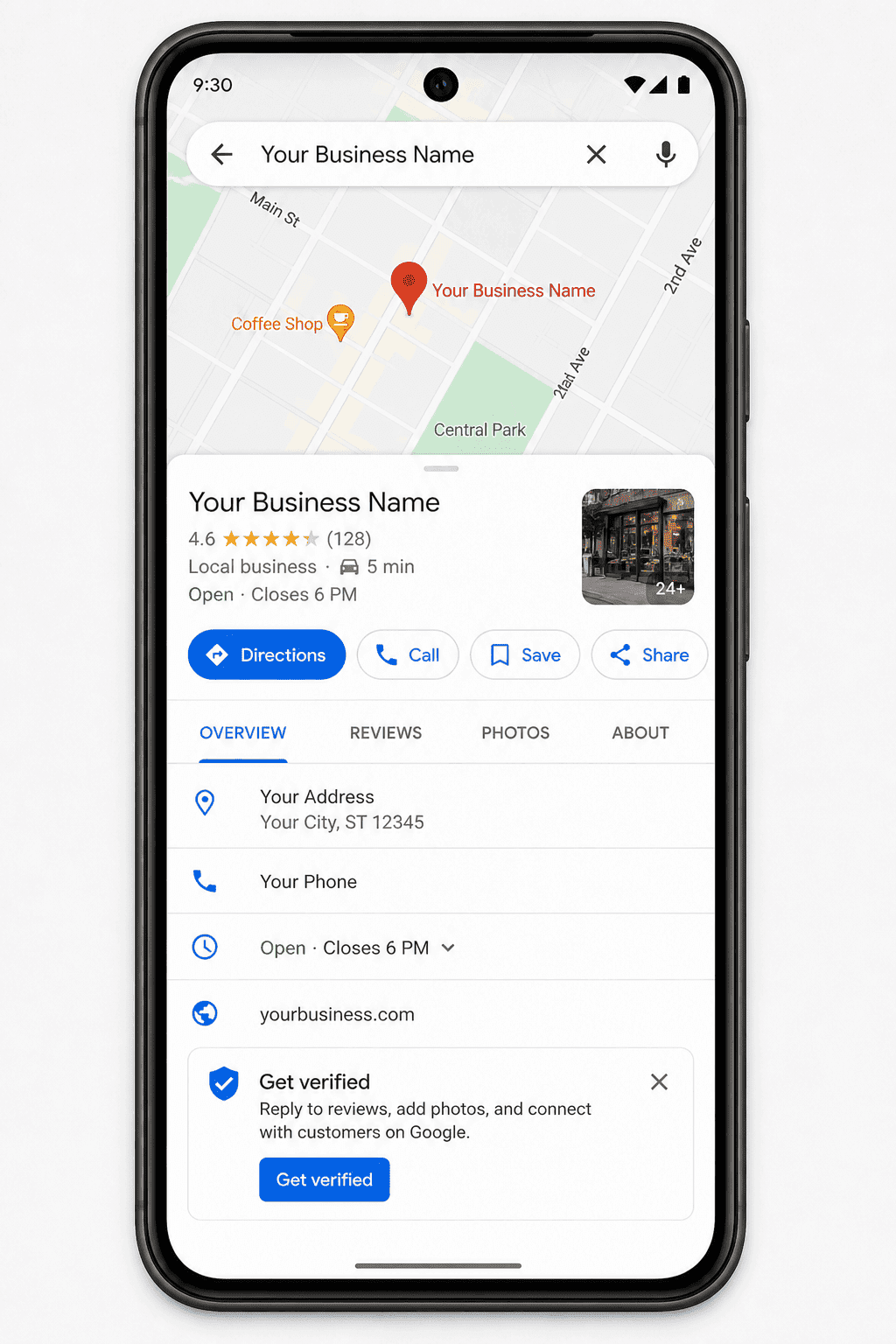
Open Google Maps on your phone. Starting on a desktop computer sends you to a QR code that redirects you to mobile anyway. Go straight to the app. Search your business name and tap on your listing in the results.
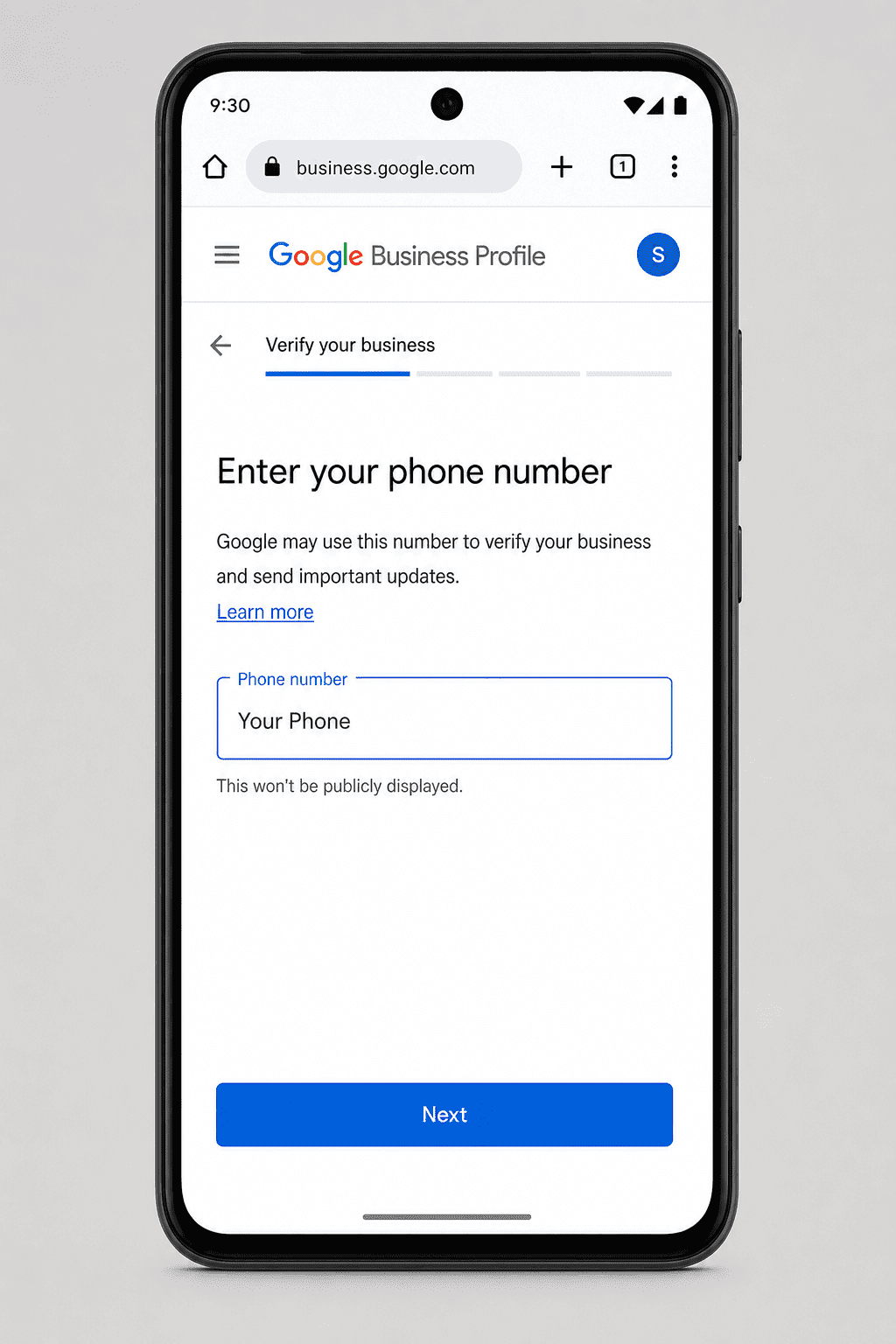
Scroll through the profile until you see the verification prompt. Tap it. If the app asks you to enter your phone number, enter it and tap Next.
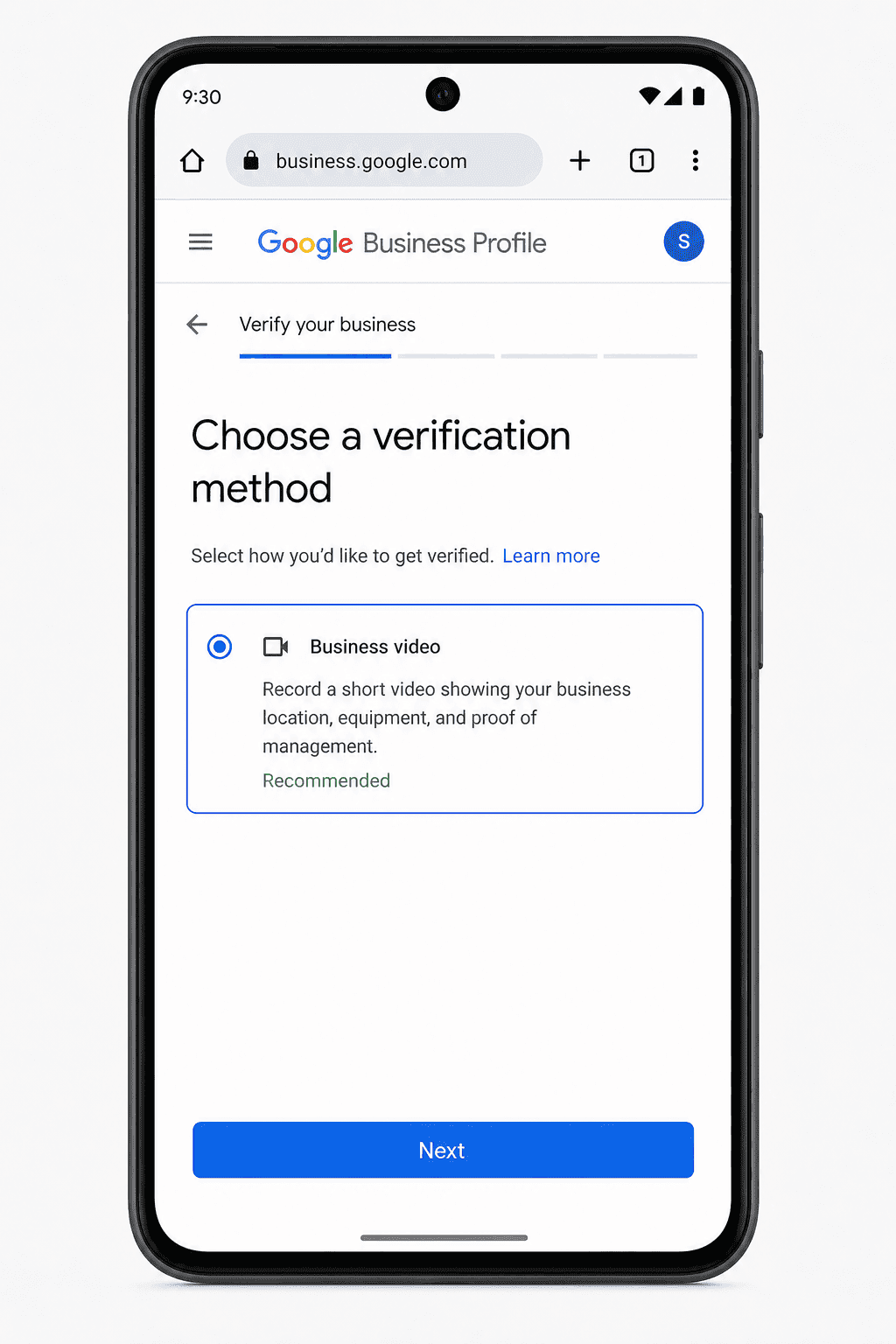
On the next screen, select “Business video” and tap Next. For most service-area contractors, this is the only option available.
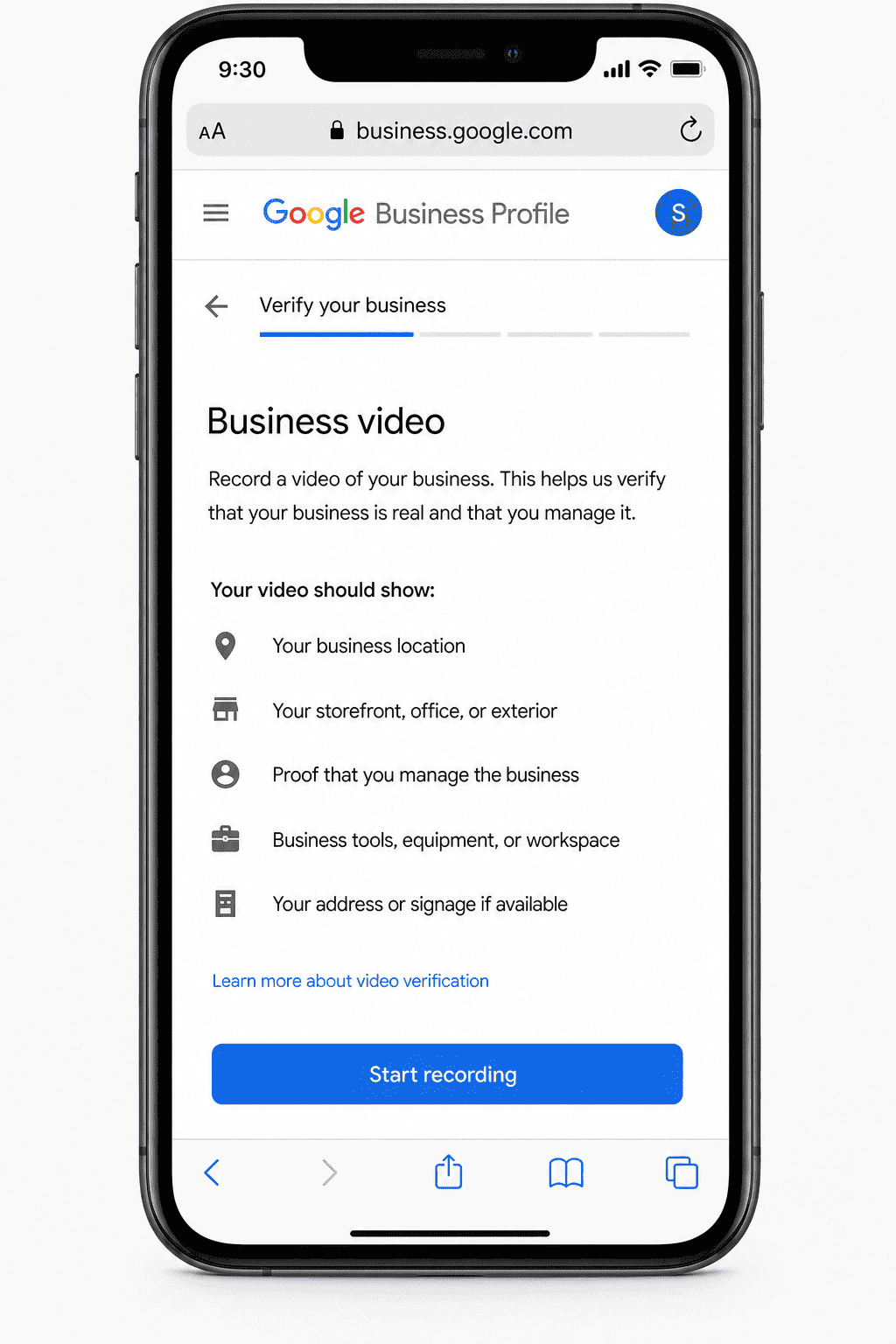
Read the requirements screen Google displays before you start. This is your last chance to confirm you have everything ready.
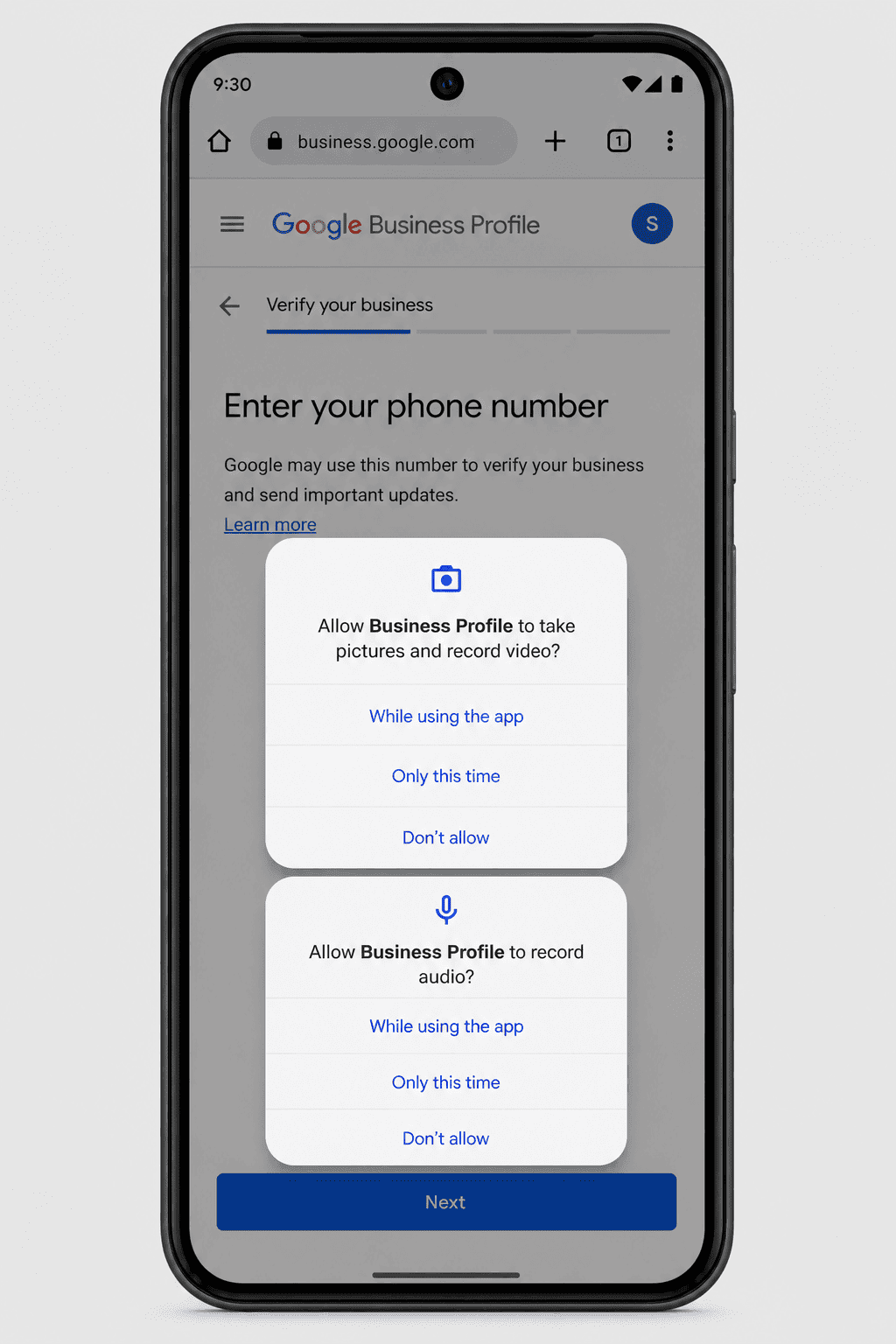
Allow camera access and microphone access when prompted. Tap Next, then Start recording. Confirm location services are on before pressing the record button.
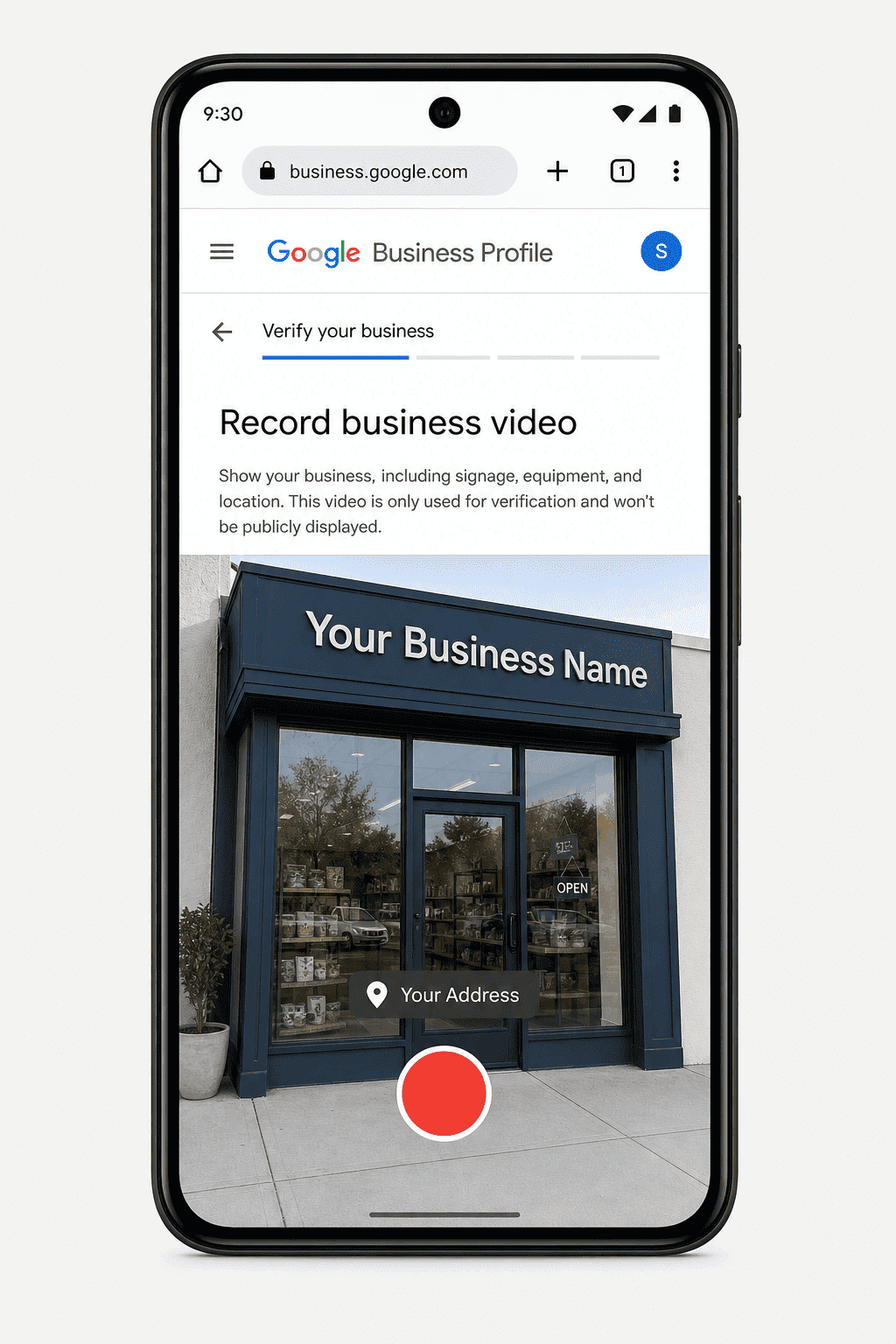
The recording screen appears with the red record button at the bottom. Before you press it, confirm location services are on. Then press record and move immediately into Step 1.
The 10-step recording sequence
Each item below needs two to three seconds of steady camera time. Move with purpose. The full sequence should run between 60 and 90 seconds.
1
Street sign
Start outside. Point at the street sign near your address.
Hold for 2-3 seconds until the name is fully readable.
2
Building or house number
Walk toward the building. Point at the address number on the door,
gate, or exterior wall. Hold until it is clearly readable.
3
Unlock and enter the location
Use your key, fob, or code to open the door or garage on camera.
Show your hand doing it. No face needed. This proves access.
4
Inside the location (office or workspace)
Walk through the door. Show the desk or workspace where you run the
business. Scheduling or invoicing software open on a screen counts.
5
Work vehicle exterior
Walk to your truck, van, or trailer. Point the camera at the company
name or logo on the side. Hold for 2-3 seconds.
6
Unlock the vehicle
Take your key and open the vehicle door on camera. Show your hand
doing it. This ties you directly to the business asset.
7
Tools and equipment inside the vehicle
Open the back or side doors. Move the camera slowly across the tools,
parts, and supplies. Show enough to identify the trade from footage.
8
Branded business item
Hold a business card, estimate sheet, or invoice pad up to the camera.
Company name clearly visible for 2-3 seconds.
9
First official document (license or LLC registration)
Show company name and address. Confirm no sensitive numbers are in frame before lifting it up.
10
Second official document (utility bill or tax document)
A second document tying the company name to the registered address. 2-3 seconds. Then press stop.
After pressing stop, tap Upload video immediately and stay on the same Wi-Fi or mobile network you used during recording. Switching networks between stop and upload is a documented cause of the upload reading as discontinuous.
Successful Video Example
Example: 75-Second Contractor Verification Video
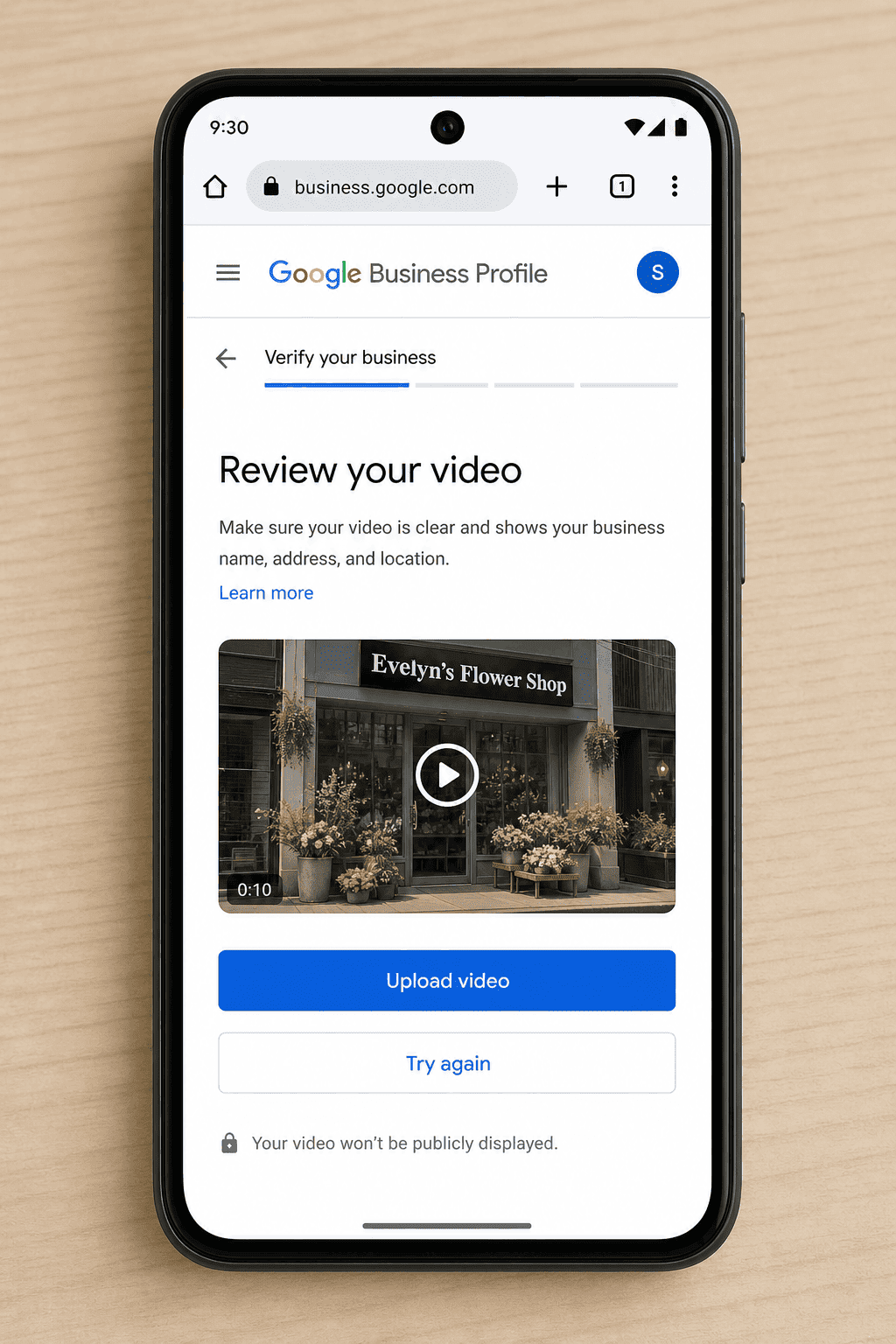
A strong contractor video might look like this: 5 seconds on the street sign, 5 seconds on the building or house number, 8 seconds unlocking the garage or office, 8 seconds showing the workspace, 8 seconds showing the branded vehicle, 6 seconds unlocking the vehicle, 12 seconds scanning tools and parts, 6 seconds showing a business card or estimate sheet, and 15 seconds showing two official documents with sensitive numbers covered. This keeps the video continuous, clear, and focused on the proof Google asks for: location, operations, and management access. Google requires the recording to be complete, unedited, and at least 30 seconds long.
Storefront Variation
Storefront Recording Variation
If customers visit your storefront during business hours, adjust the sequence to show public-facing proof first. Start with the street sign, building number, and exterior storefront sign. Then unlock the front door or employee-only entrance on camera. Inside, show the customer area, checkout desk, posted business name, stocked work area, or other proof that the business operates at that location.
End by showing documents with the same business name and address used on the Google Business Profile. Google chooses verification methods based on the business type, public information, region, and business hours, so the storefront video must match the profile details exactly.
When It Doesn’t Work
Why Google Rejects Verification Videos and How to Fix Each One
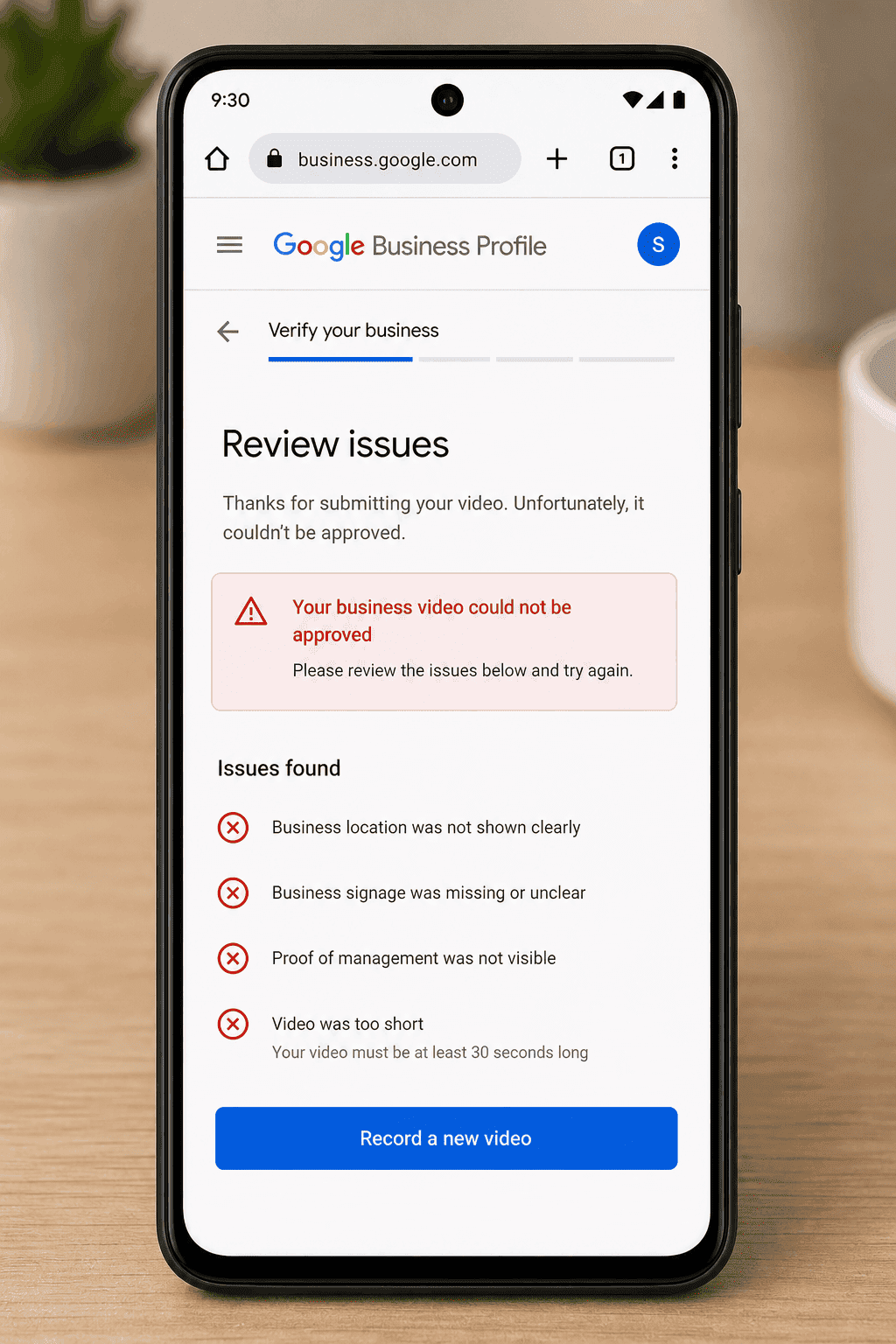
When Google rejects a video, the dashboard shows a “Review issues” warning. Tap it to see the specific reason. Not every rejection includes a detailed explanation, but the reasons below cover what causes the vast majority of failed submissions from contractors and service-area businesses.
Home-Based Businesses
What if I run the business from my home?
For a home-based service business, plan the video so it proves the business without exposing private areas. Start outside with a nearby street sign or another recognizable street-level marker. Then show your work setup, such as a desk with business scheduling software, branded paperwork, or estimate forms.
Next, show your work vehicle, unlock it on camera, and show the tools or supplies used for the service. End with two documents that connect the business name to the address on the profile. Keep personal rooms, family members, and sensitive document numbers out of the frame. Google requires the video to be unedited, continuous, at least 30 seconds long, and recorded from a mobile device through the Business Profile flow.
Your SEO agency can help guide the process, but the verification video usually needs to be recorded by the business owner or an on-site employee. Be cautious of Google Business Profile scams, since third parties claiming guaranteed verification often request access that can compromise your listing ownership. Google wants the video to show real, authorized access to the business location, work vehicle, tools, and business documents. That means the person filming should be able to unlock the building, open the vehicle, and show the required materials on camera.
In most cases, an SEO agency should not record the video unless its representative is officially authorized and can physically access everything Google expects to see during the verification. According to Google’s bulk verification guidance, when video verification is required, the recording must be done by an authorized representative who is present at the business profile location.
Rejection reason
What caused it
How to fix it
Business name not visible
Vehicle decal not in frame, or branding too small to read clearly
Hold camera 2-3 feet from the decal. Ensure full name is readable
Name mismatch
Truck says “Metro Plumbing LLC” but profile says “Metro Plumbing”
Match profile name to vehicle signage exactly before rerecording
No nearby area shown
Video started inside without showing street sign or building number first
Always start outside at street level. Street sign is Step 1
Missing proof of management
Showed exterior and tools but never unlocked a door or vehicle
Unlock both the building and the vehicle on camera. Both required
Sensitive information visible
Tax ID, bank account number, or SSN readable on a document
Cover all sensitive data before filming. Check every document before lifting
Upload failed silently
4K video too large, or network switched during upload
Lower video quality to 1080p. Stay on one stable network start to finish
Video too short or shaky
Under 30 seconds fails automatically. Shaky footage gets flagged
Practice run first. Hold each shot steady. Target 60-90 seconds total
On multiple rejections
Contractors have made eight or more attempts before passing verification. Each rejection identifies which proof element was not clear enough. Before recording again, go to your GBP dashboard, tap the three dots in the upper right, select Business Profile Settings, then Advanced Settings, and delete any cached videos. Google recommends clearing previous upload attempts to prevent conflicts that can cause a new submission to reference old footage.
If you exhaust the video verification option entirely, a live video call with a Google representative sometimes becomes available as an alternative. You can request this through Google Business Profile support. The live call follows the same sequence as the recorded video but is conducted with a Google agent reviewing in real time.
After You Submit
What Happens After You Upload and What to Do If the Listing Gets Suspended
The review window
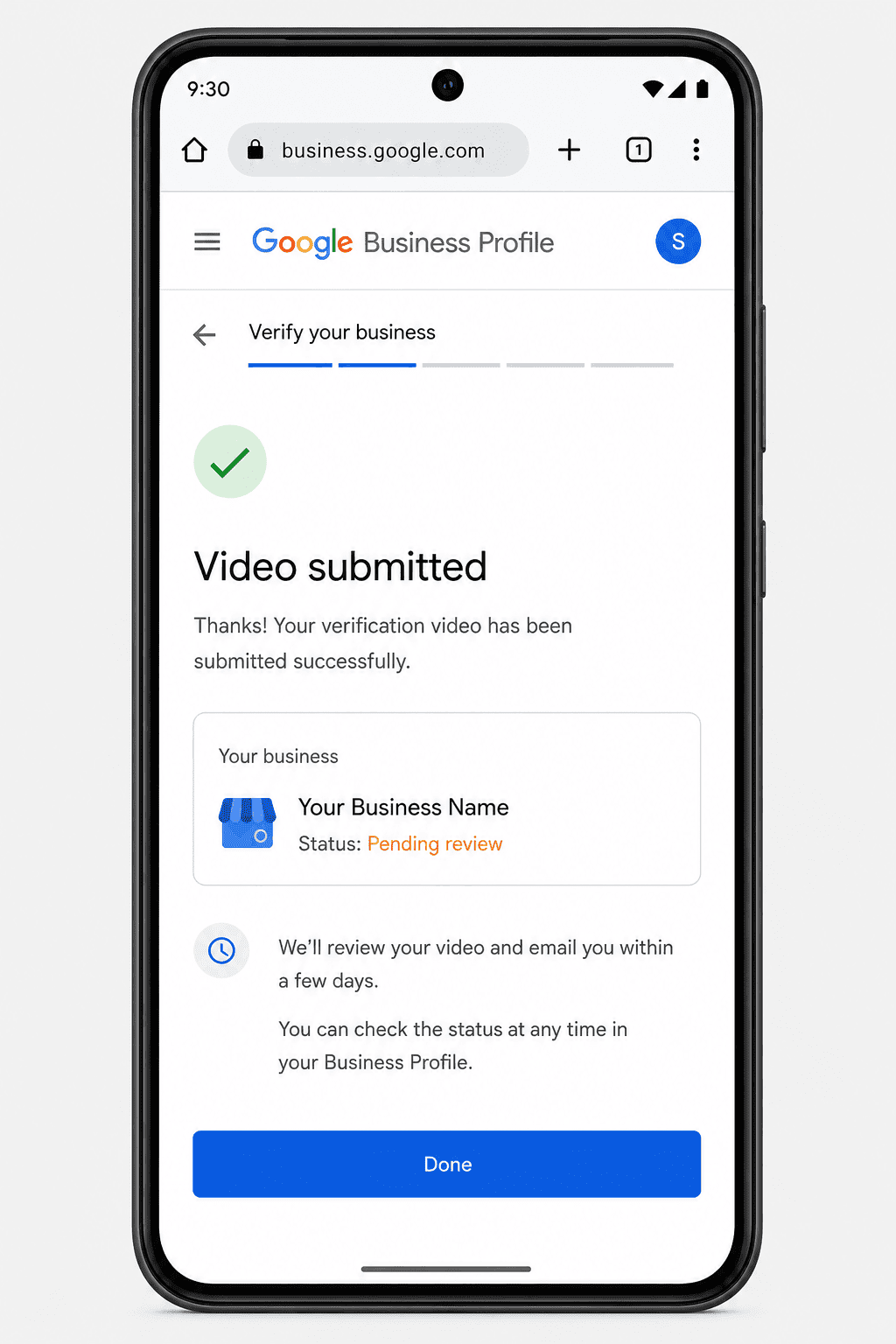
Google typically reviews verification videos within five business days. You may or may not receive a confirmation email after uploading. Some contractors see a “pending edits” status in the dashboard before a verified status appears. That is normal. If the video has been under review for more than seven business days without a decision, use the verification status tool in your GBP dashboard to contact Google’s support team directly.
After a successful verification, leave the listing alone for five to ten days before adding photos, editing hours, or changing any profile fields. Making edits too quickly after verification is one of the triggers that sends a newly verified listing back into review or, in some cases, suspension.
If Google verifies then suspends the listing immediately
This happens to legitimate businesses. Google’s automated system flagged the account and queued it for manual review. File an appeal immediately through your GBP dashboard. The appeal form asks for additional documentation and a brief written explanation.
You typically have about an hour to complete the appeal form after it becomes available. Upload these with your appeal:
A photo of your business license showing company name and address
A photo of your LLC registration or state registration document
A photo of a utility bill in the company name at the registered address
Any additional official document connecting your business name to your location
In the written explanation, describe your business accurately: how long you have operated, what services you provide, what area you cover, and what documents you are attaching. Keep it factual. Emotional appeals do not affect the outcome. Documented evidence does.
Appeals resolve in three to five business days in most cases and up to two weeks for accounts in high-spam categories. Google sends an email with the decision.
Common Questions
Google Business Profile Video Verification: FAQ
Can I record the video on a desktop computer instead of my phone?
No. Google’s video verification process runs inside the Google Maps mobile app. Starting the process on a desktop redirects you to a QR code that sends you to your phone anyway. Record and upload directly from your phone.
Can I record the video separately and then upload it?
No. Google requires the video to be recorded and uploaded directly through the Business Profile app in a single continuous session. Pre-recorded files cannot be uploaded in place of the in-app recording. The video must be filmed inside the Google Maps interface.
What if I run the business from my home?
Home-based service businesses follow the same sequence. Show nearby street signs and landmarks in your immediate neighborhood rather than your home’s specific exterior. Show your workspace, your tools, your vehicle, and your business documents. You do not need to show the interior of your home. The street-level portion can use recognizable markers near your address instead of the address itself.
Does my face need to appear in the video?
No. Google’s guidelines specifically prohibit other people’s faces, and showing your own face is not required. Show your hands unlocking doors and holding documents, but keep the camera pointed away from faces throughout the recording.
Does Google keep the verification video?
Google deletes verification videos after the review is complete. The footage is used only to confirm business legitimacy. You can also delete it manually from your profile settings under Business Profile Settings, then Advanced Settings, then the Video uploads section.
How many times can I resubmit if my video gets rejected?
Google does not publish a fixed limit. Contractors have made eight or more attempts before passing. Each time you resubmit, clear cached videos from your profile settings first. If video verification becomes unavailable as an option, contact Google Business Profile support to request a live video call as an alternative verification method.
My listing got verified and then suspended within minutes. Is that normal?
It happens to legitimate businesses. Google’s automated detection system can flag newly verified listings in high-spam categories, including plumbing, HVAC, roofing, and electrical contracting, for manual review before they go live. File an appeal immediately with the documents listed above in this guide. The appeal review typically resolves within three to five business days.
If the answer you needed was not included on this page, please check our Contractor Help Center for more support, helpful information, and detailed resources.
We Can Handle This for You
Skip the Back-and-Forth. Let Us Manage Your GBP.
Digital Media Group has managed Google Business Profiles for home service contractors since 2011. We handle verification, optimization, and the local SEO work that turns a verified listing into actual phone calls.
As Co-Founder of Digital Media Group, Sam Davtyan has changed how agencies work with clients by replacing ambiguity with clear expectations. While many agencies struggle with communication gaps, Sam built DMG’s day-to-day process around accountability, set timelines, and results-driven planning.From planning to execution, he keeps internal teams focused on the metrics that matter most: calls, bookings, and revenue. For Sam, client success comes from a system that runs with discipline and delivers results.
Connect with Sam on LinkedIn, Facebook, and X.